We hope that you find all your questions regarding this Elementor Template Kit answered in this Documentation in as much detail as possible. However, if you still need support, do not hesitate to contact us.
1. Getting Started
Require Server/Hosting with some config :
PHP Version: 7.X.X
PHP Memory Limit: 256M
WordPress Version: 6.1
Elementor Version : 3.X.X
2. Install Template
Step 1 :
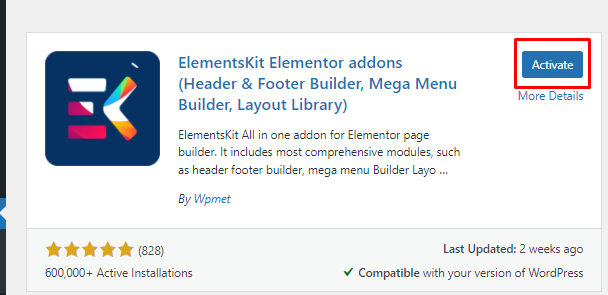
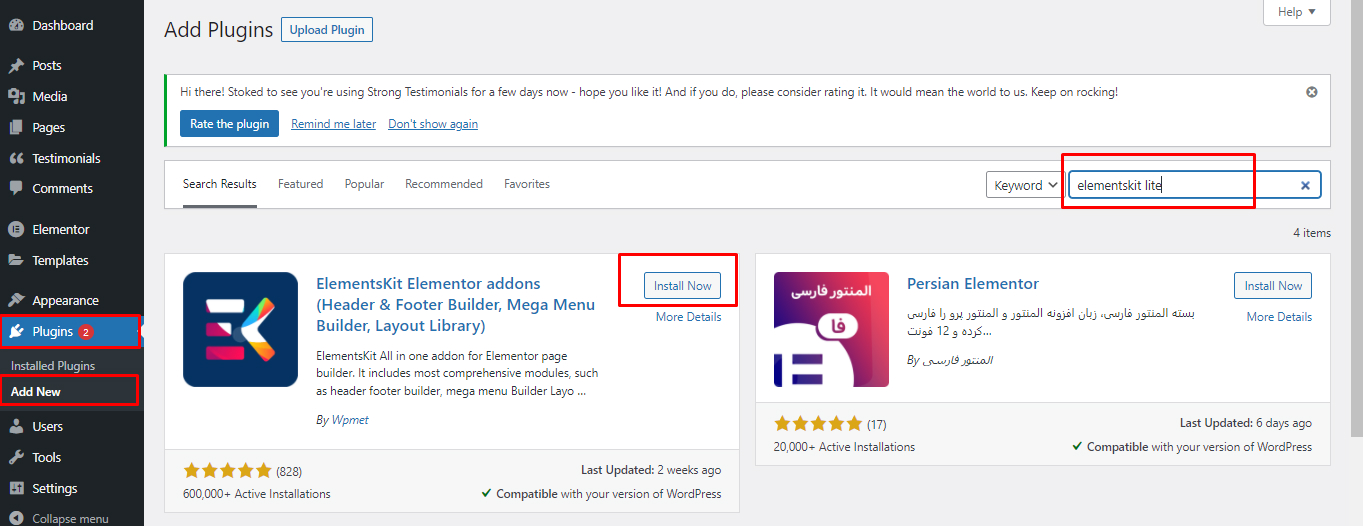
On the WordPress Dashboard, go to Plugins > Add New, type the plugin to be installed in the Search Plugins... column, click Install Now, then click Activate. The required plugins include:
Elementor Website Builder
Elementor Pro (you need to purchase this separately)
ElementsKit Elementor addons
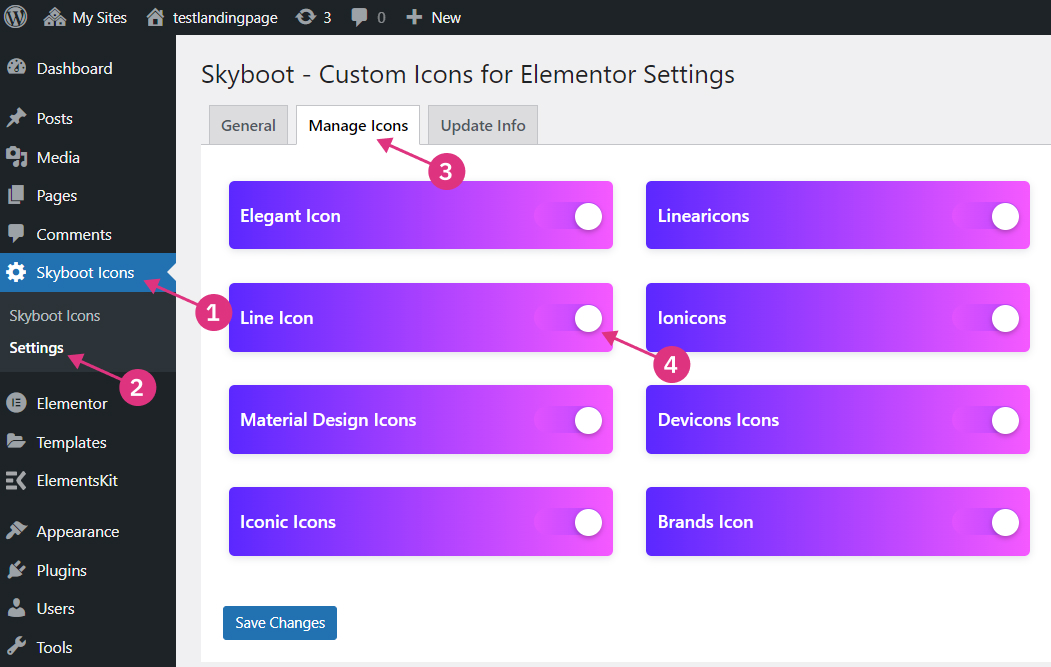
Skyboot Custom Icons for Elementor – Elementor Icons library
Return to the Dashboard, then select the Skyboot Icons > Settings menu. Click the Manage Icons tab and slide all the icon type buttons to the right.
Step 2 :
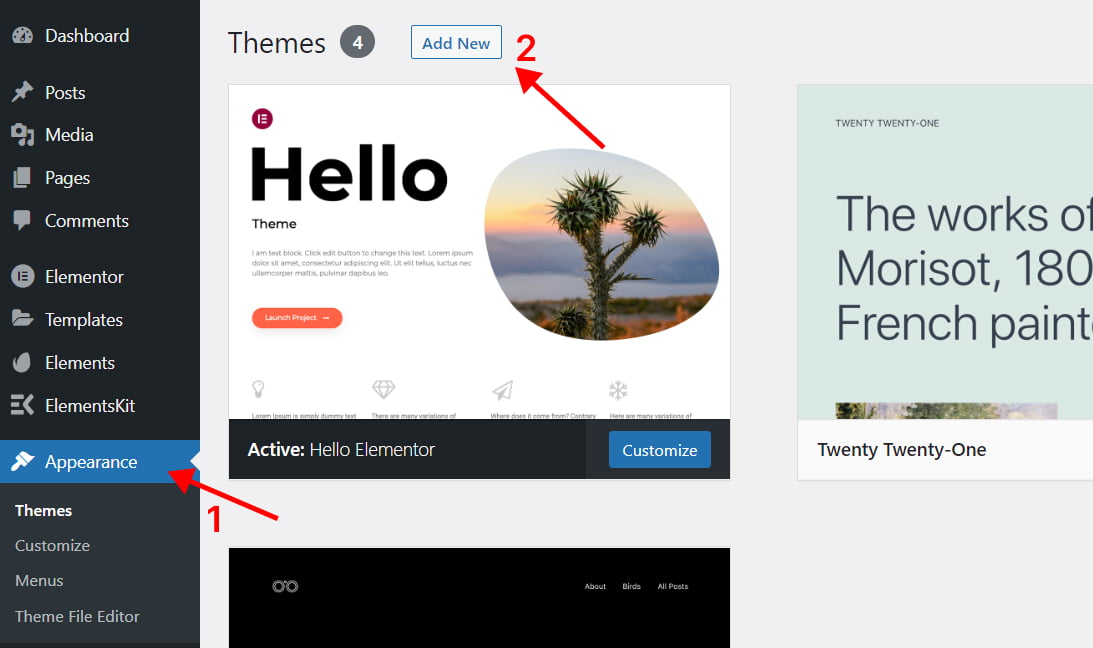
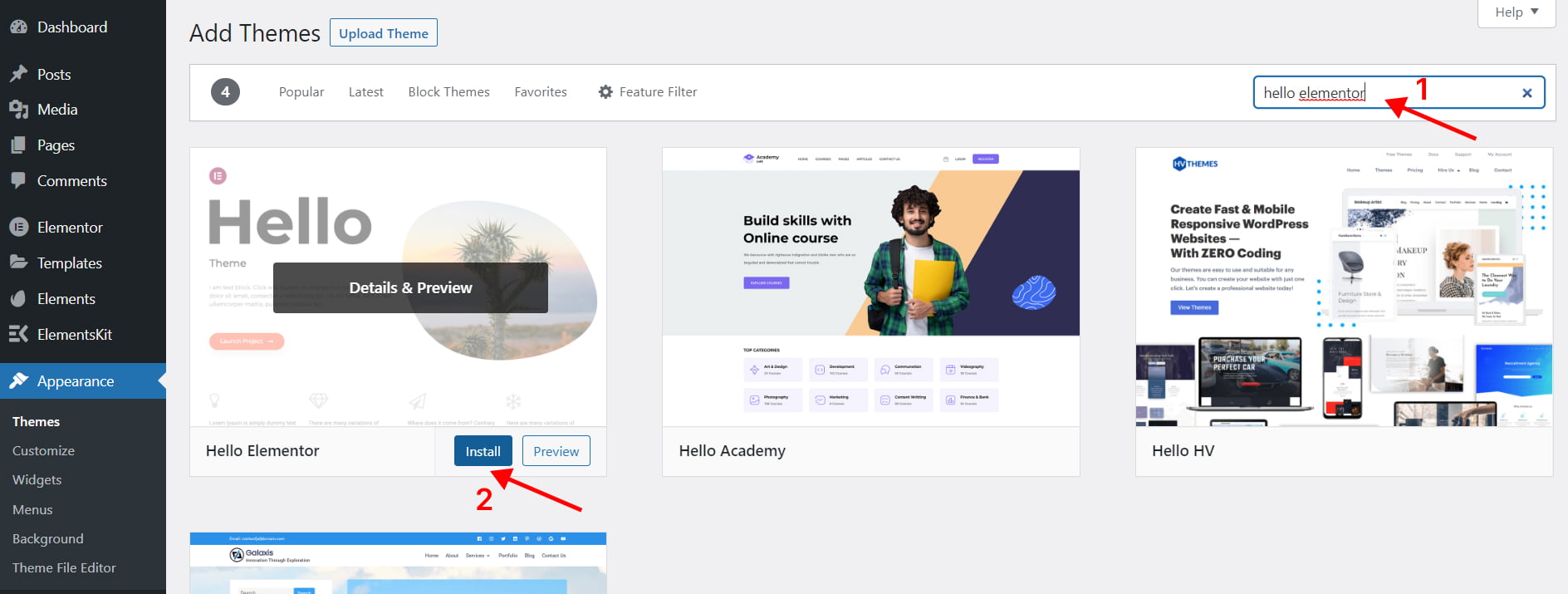
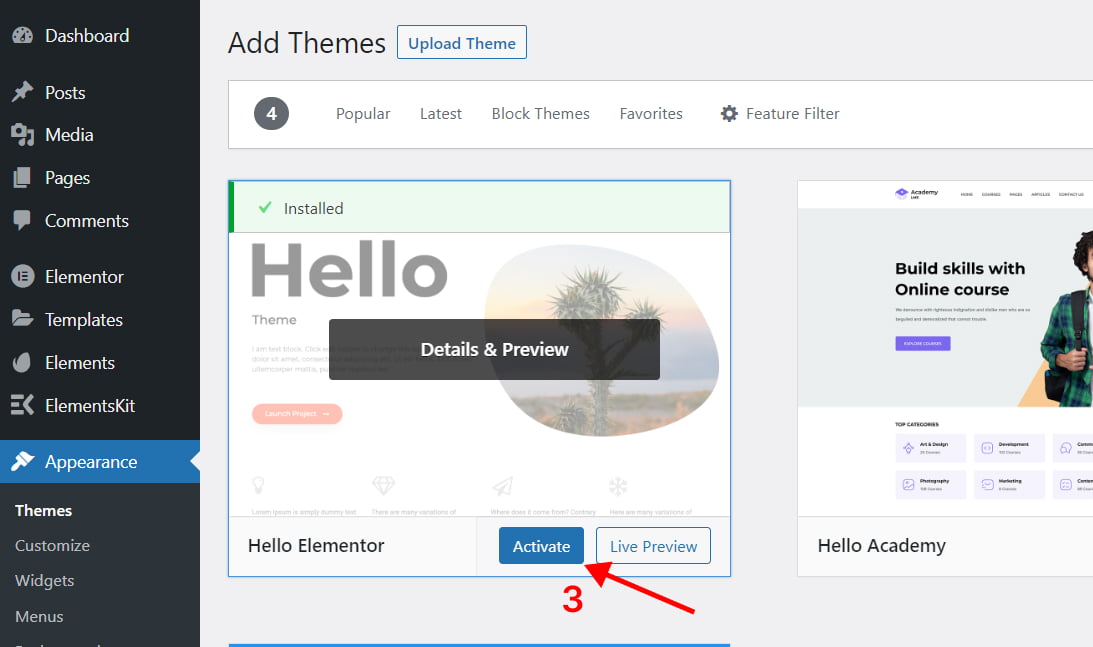
On the WordPress Dashboard, go to Appearance > Themes > Add New, type in the search field the theme name : Hello Elementor. Click Install, than click Activate.
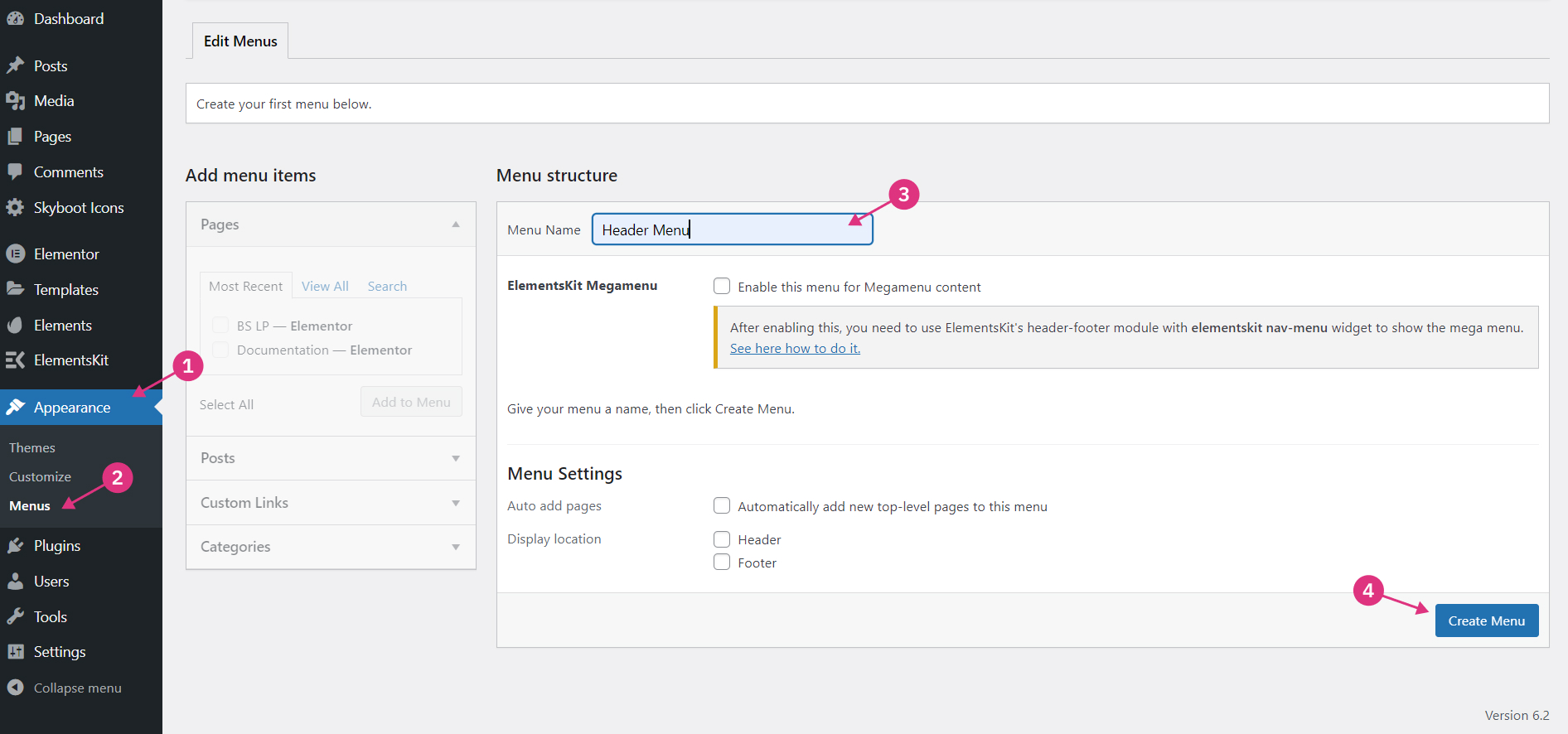
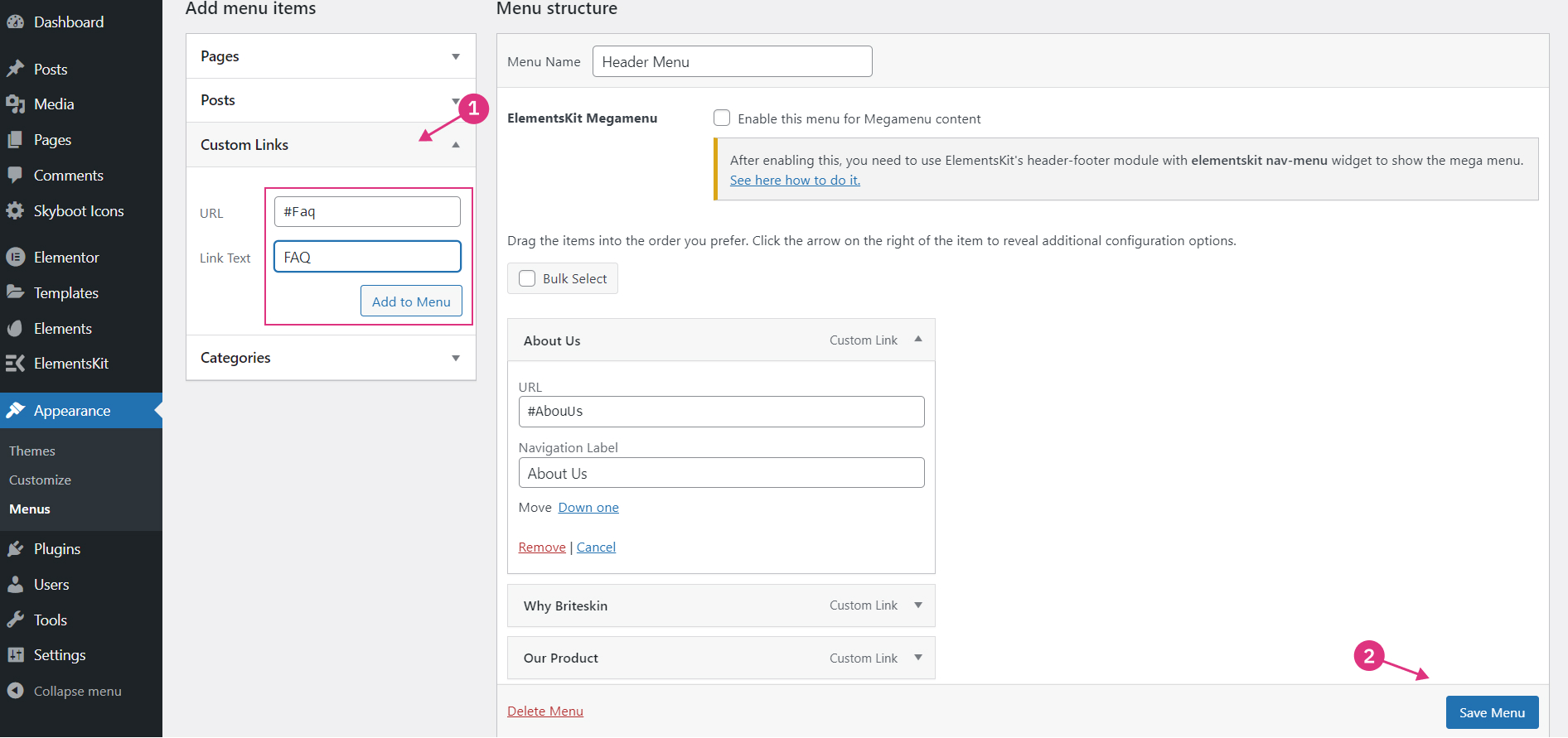
Back on Dashboard, select Appearance > Menus. Type the menu name in the Menu Name column, then click the Save Menu button on the lower right. After that, click on the Custom Links section, type the menu name and URL as shown in the image below, then click the Add to Menu button, then the menu will appear on the right side. After all the menus are created, click the Save Menu button.
Step 3 :
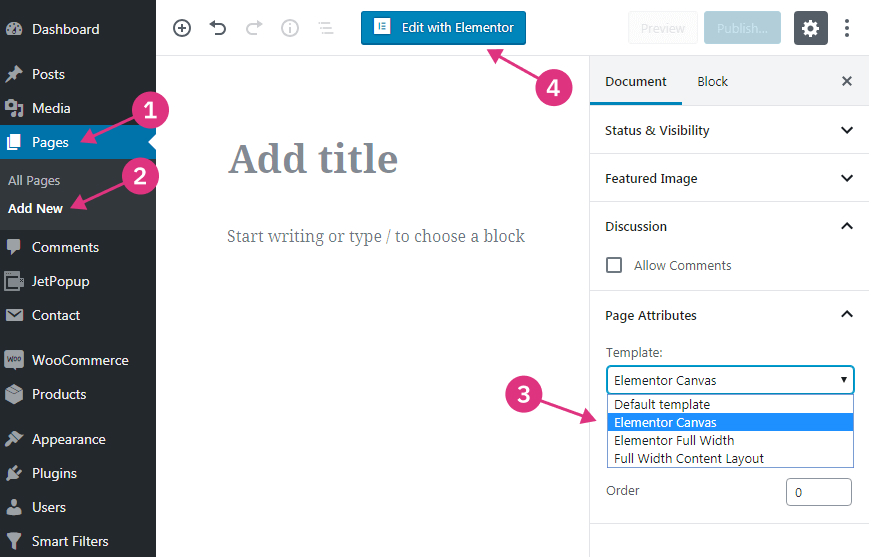
On the Dashboard, go to the Pages > Add New. Provide your new page with a name, and proceed to the Page Attributes section, where you need to select the Elementor Canvas template from the Template dropdown. Now, click the Edit with Elementor button to get redirected to Elementor page builder.
Step 4 :
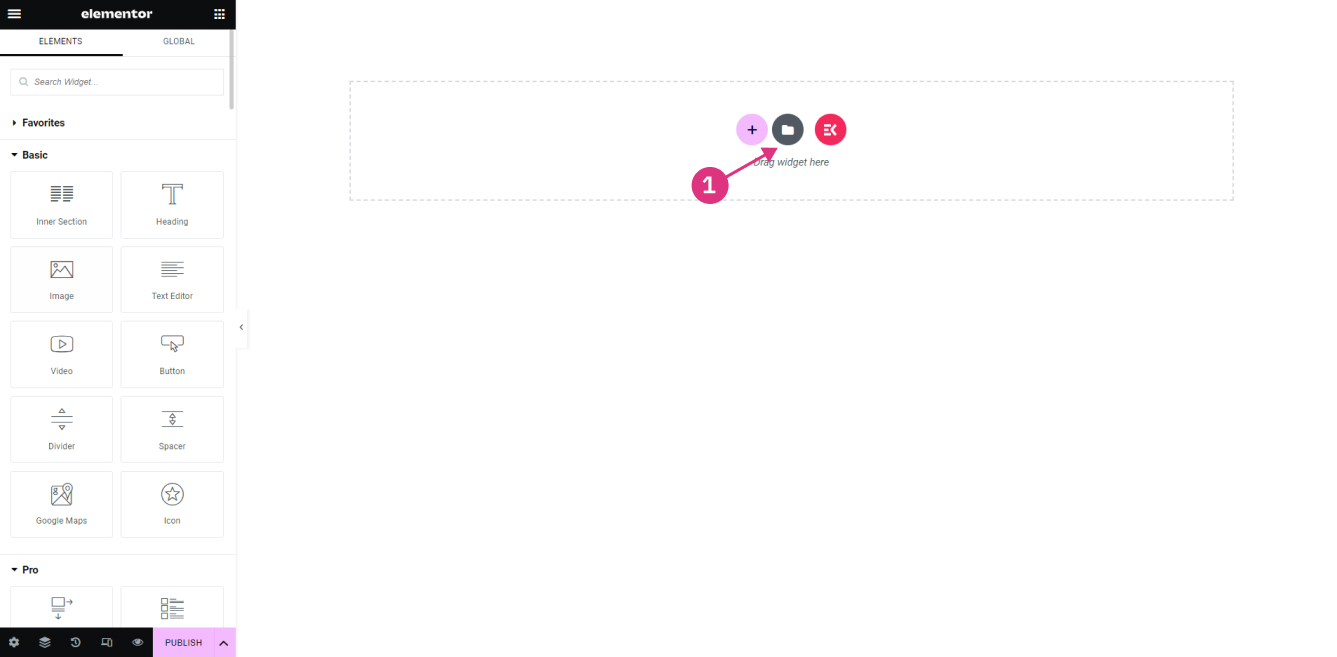
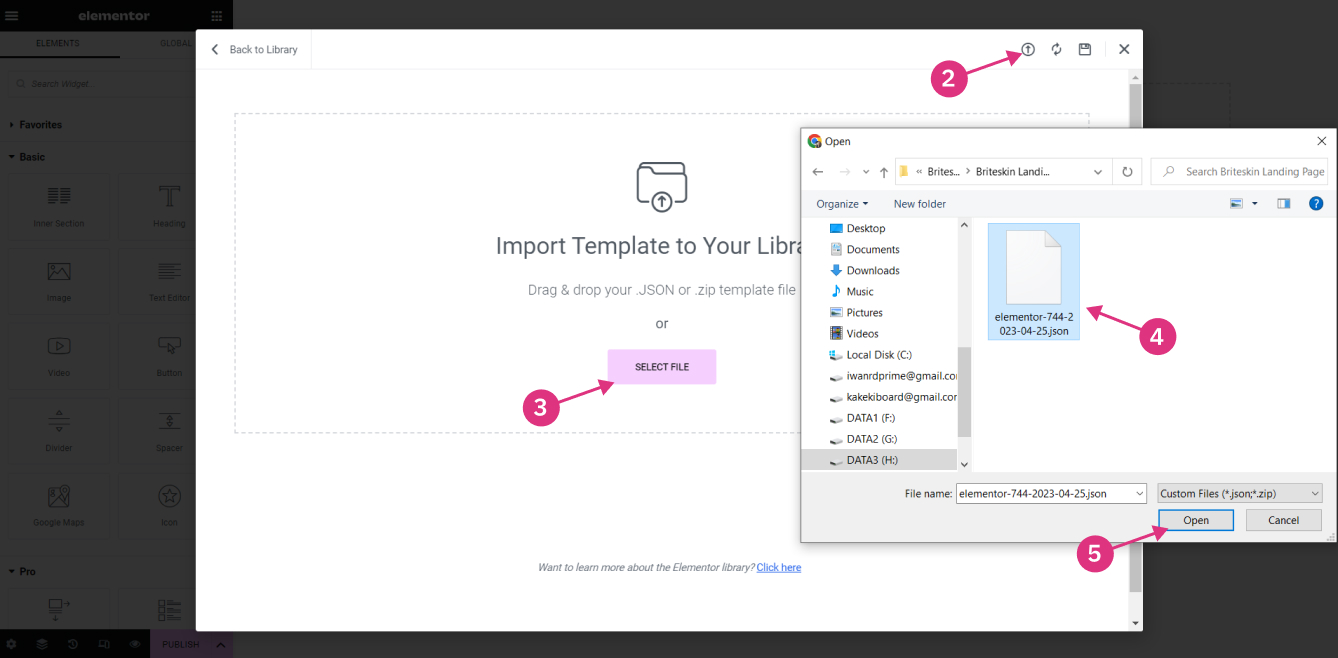
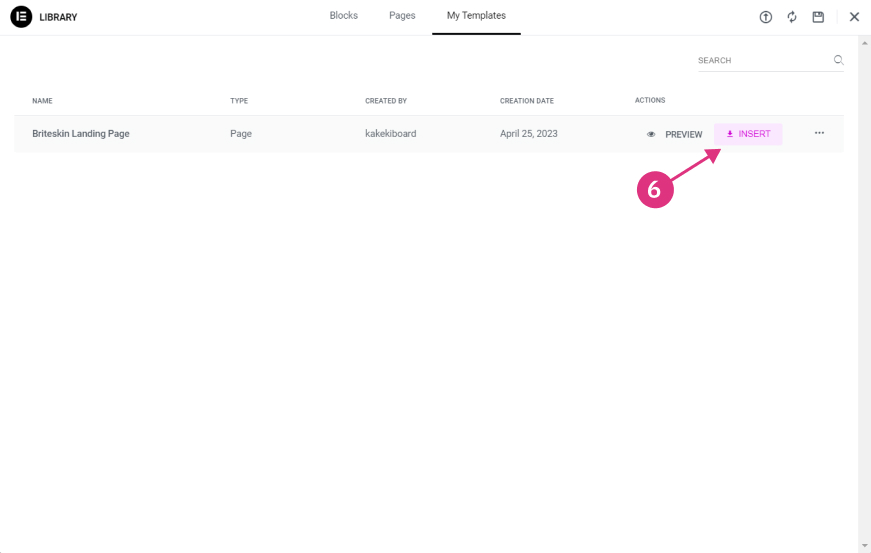
After entering the Elementor Editor page, click the Add Template icon, then click the Import Templates icon, and select the file to import. Wait for it to finish, then select Insert. Template installation is complete, don't forget to click the Publish button on the lower left side.
3. Edit Content
Step 1 :
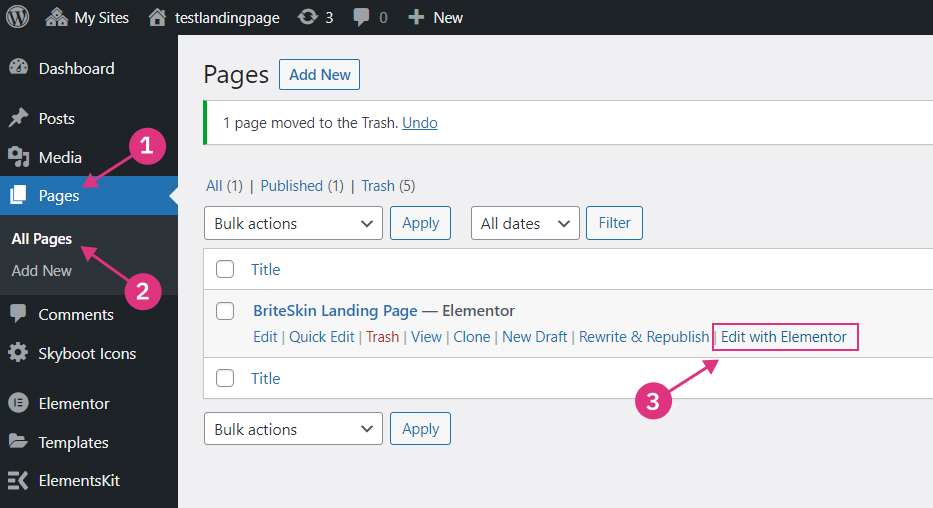
On the Dashboard page, select Pages > All Pages, navigate to the pages to be edited, click Edit with Elementor.
Step 2 :
After entering the Elementor Editor page, you can change the Title, Text, Color, Image or URL link according to what you want.
2a : Edit Title, Paragraph, & Color
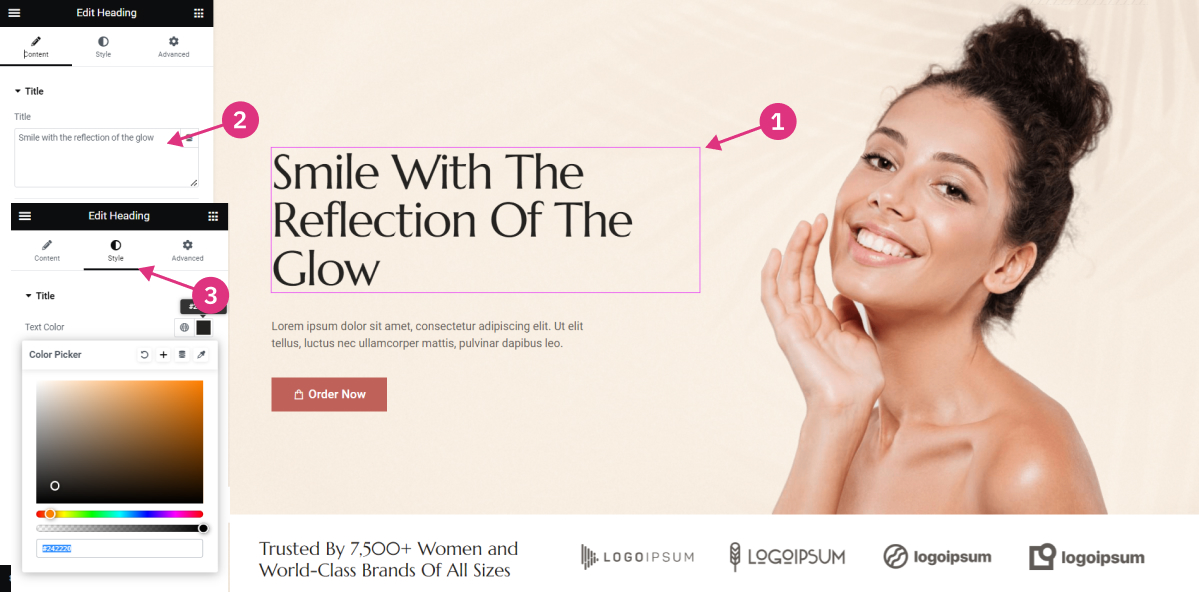
Click on the title/paragraph that you want to change, then enter the text you want in the column on the left. And you can also change the color by clicking the Style tab in the left column, then clicking on the color box.
2b : Edit Image
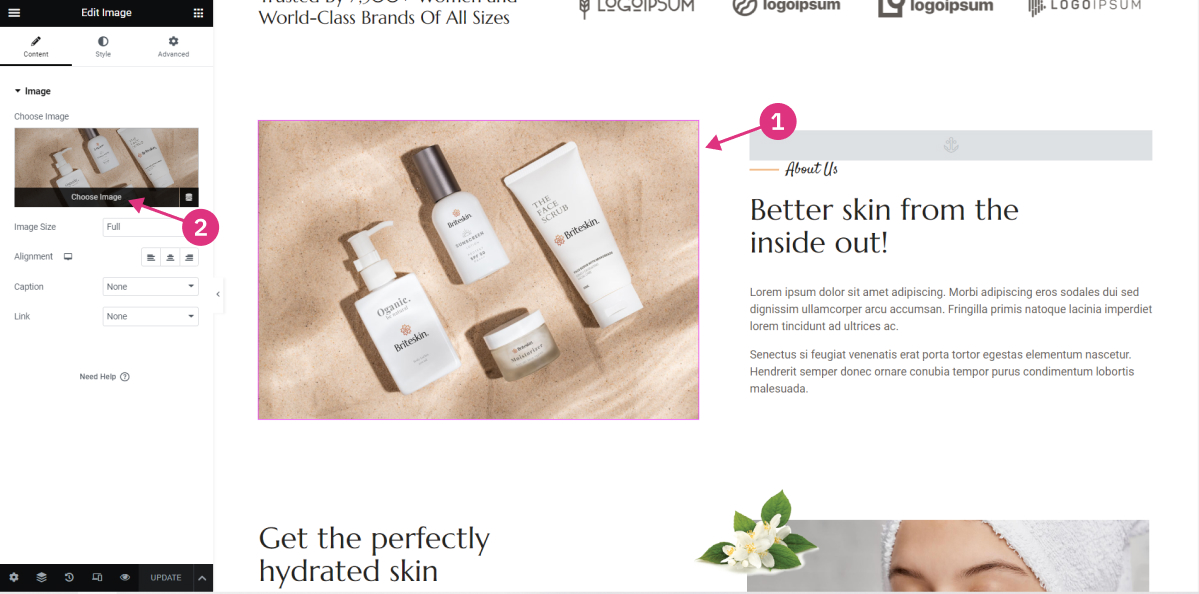
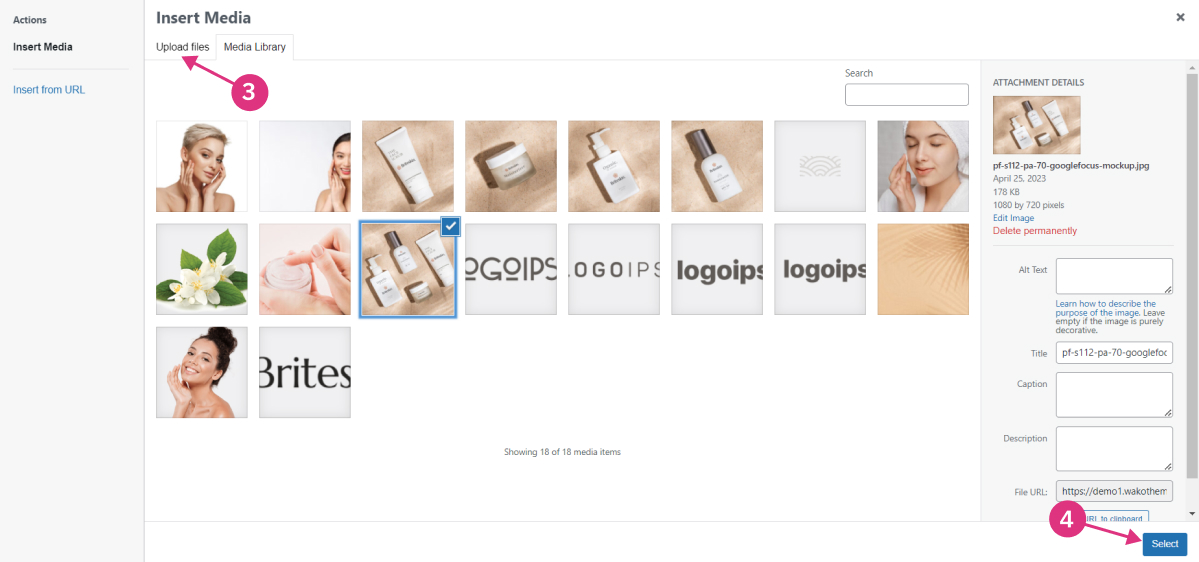
Click on the Image/Photo you want to change, in the left column click Choose Image, and select the image you want or select Upload files if you want to upload image files from your PC/Computer.
2c : Edit URL links
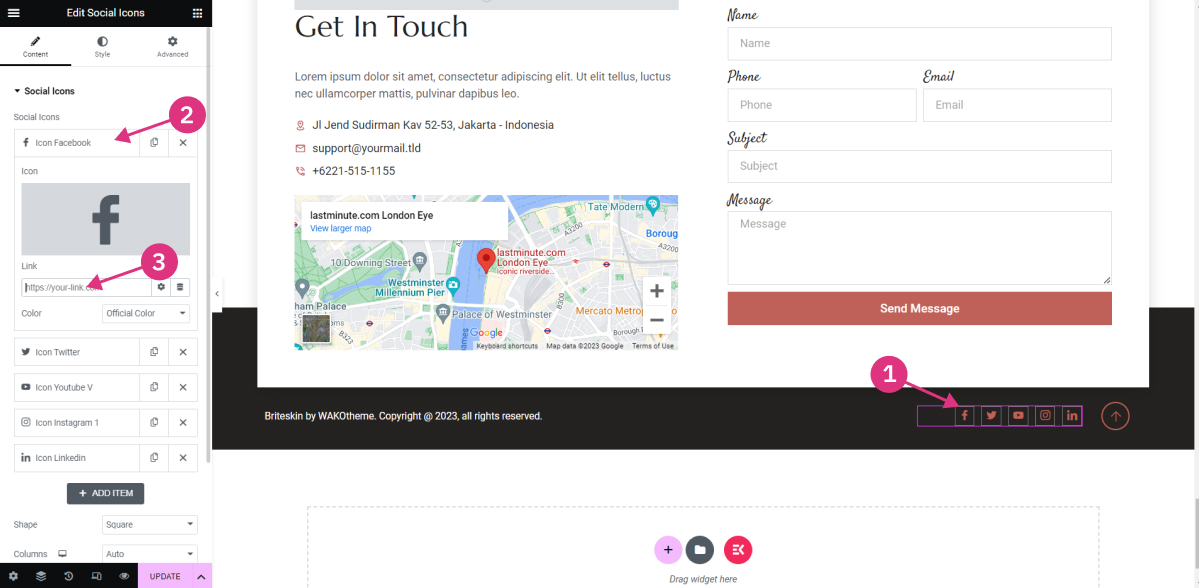
Click on one of the elements that you want to change, for example Social Icons, Click on the social media box in the left column, then enter the url according to your url address.